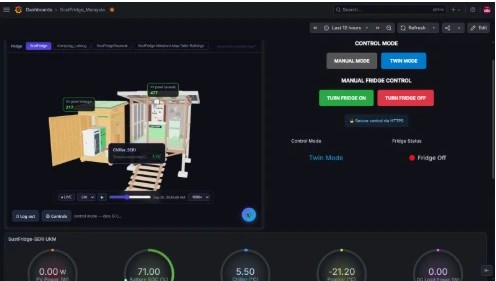
IIoT Digital Twin SaaS Platform

Your 3D Models.
Your Live Sensor Data.
One Living Digital Twin.

Upload any 3D model, connect your Grafana sensor data, and watch your assets come alive — with real-time hotspots, history playback, industrial control, and AR/VR support. No coding required.

Live Digital Twin — Jet Engine Model
● Real-time Sync Active

Demo 3D model: “Safat EJ200- JET ENGINE AN” by CloudHubOmniTeam, licensed under CC BY 4.0.

From 3D Model to Live Twin in Minutes

Four steps — no infrastructure to manage, no code to write.

01

Upload Your 3D Model

Paste the URL of any publicly hosted GLB or glTF file — a building, machine, campus, or production line. The model loads instantly in the browser. A single scene can hold up to 50 models placed and scaled independently.

02

Connect Your Sensor Data

Connect directly to your database — InfluxDB, PostgreSQL, or MySQL — or link an existing Grafana instance. Both work side-by-side. Grafana users can also embed the twin back into their Grafana dashboards as an iframe panel, adding a Digital Twin view that Grafana doesn't provide natively.

03

Place Sensors & Bindings

Click a point on the model to drop a sensor hotspot — it shows the live value and changes colour (green / amber / red) by the thresholds you set. Or click a mesh part to colour the entire component by a live data value.

04

View, Share & Control

Your twin updates automatically in real time. Share a public viewer link with anyone or embed it in your own dashboard. Switch to AR to walk around your model in your facility, or step into VR for a fully immersive inspection.

Everything Your Team Needs to Monitor & Act

From a single machine to a whole campus — built for industrial operations teams, not just IT.

Live Sensor Hotspots

Click any surface to pin a sensor marker. Each hotspot pulls the latest value from your query and displays it as a floating label on the model.

  • Colour thresholds: green / amber / red
  • Hover tooltip shows all sensor fields
  • Adjustable marker and text size
  • Duplicate hotspots to place multiples quickly

Mesh Colour Binding

Colour an entire named part of your model — a room, a chiller, a pipe — by a live sensor value. Hover to identify any part by name before binding it.

  • Works with named mesh parts from Blender or any CAD tool
  • Same threshold colour logic as hotspots
  • Bindings panel shows current value at a glance

History Playback

Travel back in time through your asset's sensor history. The timeline bar at the bottom lets you replay up to 7 days of data with a scrubber and adjustable speed.

  • Range windows: 1h, 6h, 24h, 7 days
  • Playback speeds: 30×, 60×, 300×, 1800×
  • Hotspot colours animate through the window
  • Click ● LIVE at any time to return to real-time

AR & VR Inspection

On a compatible phone, headset, or Quest device, tap AR to overlay your digital twin in your real environment — or step into VR for a fully immersive walkthrough.

  • AR: place the model on any surface, measure distances, drop notes, scan QR codes to jump to sensors
  • VR: scale, rotate, and move through the model hands-free
  • In-headset wrist menu for playback and model controls
  • Control widgets work in XR — operate equipment without leaving the headset

Share & Embed

Every project gets a public viewer link and an embed code. Three access modes give you full control over who can see it.

  • Public — anyone with the link
  • Token — secret key required; rotate to revoke old links
  • Referrer — embed works only from your allowed domains
  • Embed into any web dashboard — including as an iframe panel inside your existing Grafana dashboard, adding a live Digital Twin view that Grafana doesn't provide natively
  • Viewers can explore, replay history, and enter AR/VR — read-only

AI Data Assistant

A built-in chat assistant you can ask questions about your sensor readings and the current scene — straight from the sidebar, without leaving the twin.

  • 100 calls/month on Free; 1 000/month on Pro
  • Understands your current scene context

Industrial Control

Pro

Send commands to actuators, PLCs, and relays directly from the 3D model — via MQTT or HTTP. Control widgets anchor to the mesh and appear in AR/VR too.

  • Widget types: Button, Toggle, Slider
  • Command approval workflow — supervisor can approve or reject
  • Emergency stop halts all commands in a group instantly
  • Credentials encrypted; never sent to the browser
  • Live device state reflects external changes in real time

Display & Scene Settings

Adjust how your model looks — background colour, ambient and directional lighting, auto-rotation speed, grid, and shadow — settings persist per scene.

Multi-Model Scenes

Build complex environments by combining up to 50 GLB models in one scene. Set each model's position, rotation, and scale independently — ideal for floor layouts, campus views, or assembly lines.

Free Access. Invite Only.

The platform is currently invite-only. Request free access — we'll send you an invitation code to get started. Upgrade to Pro when your project grows.

Free
Free Plan
£0 / forever

Perfect for evaluating the platform or running a single pilot project.

  • 1 project
  • 3 scenes per project
  • Live sensor hotspots & mesh binding
  • History playback (up to 7 days)
  • AR & VR viewer
  • Share & embed (public or token)
  • AI assistant — 100 calls/month
  • Industrial control
Request Free Access
Pro
Pro Plan
Contact us / month

For production deployments, larger teams, and industrial control requirements.

  • 10 projects
  • 50 scenes per project
  • Everything in Free
  • AI assistant — 1 000 calls/month
  • Industrial control (MQTT & HTTP)
  • Command approval workflows
  • Emergency stop per control group
  • Team user management & invite codes
Get in Touch

Up & Running in Under 10 Minutes

Here is exactly what to do from first login to your first live hotspot.

1

Create your account

First, request your invitation code — the platform is currently invite-only. Once you receive your code, go to dt.synapseedge.net, click Register, and enter your name, email, password, and invitation code. Accept the Terms of Service to complete sign-up. A verification email is sent to you — click the link before creating projects.

2

Connect your data source

You have two options — use either or both:

Direct database connection — open a project → Data Sources tab → + Add source. Enter the type, host, port, database, and credentials and click Test then Save.

InfluxDB MySQL PostgreSQL

Grafana integration — click ⚙ Grafana in the top bar, enter your Grafana URL and a read-only service-account token, and click Save. One global connection covers all projects. Use this if your team already uses Grafana — you can also embed the twin back into Grafana as an iframe panel, giving you a Digital Twin dashboard inside Grafana itself.

InfluxDB (Flux) InfluxQL MySQL PostgreSQL Grafana-proxied SQL
Tip: enter just host:port — the app adds http:// automatically
3

Create a project & add your first scene

Click Switch → + Create project and give it a name. Then click + Add Scene in the Scenes panel, enter a name, and paste the URL of your GLB or glTF model file. Click Save — the model loads in the 3D viewport.

Navigate: left-drag to rotate, right-drag to pan, scroll to zoom
4

Place your first sensor hotspot

Click + Sensor in the toolbar. Your cursor turns into a crosshair — click the exact spot on the model where the sensor lives. In the dialog that opens, give it a label (e.g. Pump Inlet Temp), pick your Grafana datasource, and enter a query that returns one numeric value. Add colour thresholds and click Save. The hotspot appears on the model with the live reading.

Hover the marker to see all sensor fields in a tooltip
5

Share your twin

In the Embed URL panel, choose an access mode — Public, Token-protected, or Referrer-restricted — and click Copy. Send the link to your team, paste the embed code into any web dashboard, or add it as an iframe panel inside your existing Grafana dashboard — this gives your Grafana users a live Digital Twin view that Grafana doesn't provide on its own. Viewers can explore the model, see live readings, replay history, and enter AR/VR without an account.

Platform Questions

The things teams most often ask before getting started.

What databases can the Digital Twin platform connect to?

You can connect directly to InfluxDB, PostgreSQL, or MySQL, or link an existing Grafana instance — both methods work side by side. Grafana also exposes any Grafana-proxied SQL source. You add a direct connection in the project Data Sources tab, or a Grafana connection via the global Grafana settings.

Can I embed the digital twin in my Grafana dashboard?

Yes. Grafana has no native Digital Twin dashboard, so the platform gives every project an embed URL you can add to Grafana as an iframe panel. This puts a live, interactive 3D Digital Twin view directly inside your existing Grafana dashboards, alongside your other panels.

Do I need to write code to build a digital twin?

No. The platform is entirely point-and-click in the browser. You upload a GLB or glTF 3D model by URL, connect your data source, then click to place sensor hotspots and bind mesh colours to live values. No programming is required — though you do write simple SQL or Flux queries to select the values you want to display.

Does the platform support AR and VR?

Yes. On a WebXR-capable phone or headset such as Meta Quest, you can view your twin in AR — placing the model in your real environment, measuring distances, and scanning QR codes to jump to sensors — or step into a fully immersive VR walkthrough. Control widgets work in XR too.

How much does it cost and how do I get access?

The platform is currently invite-only with a free plan (1 project, 3 scenes, 100 AI assistant calls per month). A Pro plan adds industrial control, higher limits, and team management. Request a free invitation code through our contact form and we'll send your access details.

Your Digital Twin is
One Request Away

The platform is currently invite-only. Send us a request and we'll issue your invitation code — no credit card, no infrastructure to set up. Just your 3D model and your database or Grafana connection.